Organization Settings for Admins
Last updated: May 9, 2026
Overview
Organization Settings is where admins manage the users and locations associated with their PartBay account. From here, you can view every user on the platform, edit their access and assignments, and add new locations as your business grows.
This article covers only the admin-level actions available in Organization Settings. Configuration that shapes how PartBay selects and orders parts — vendor preferences, ordering rules, rekey settings, and similar — lives under Preferences and is covered in separate articles in this knowledge base.
What You Can Manage
There are two primary tables in Organization Settings:
Section | What It Controls |
Users | The full list of users on your account, their roles, position, and assigned locations. |
Locations | The shop locations tied to your account. |
Managing Users
The Users table shows every user currently on your PartBay account. To make changes to a user, find them in the table and click the Actions menu in the far-right column, then select Edit User.
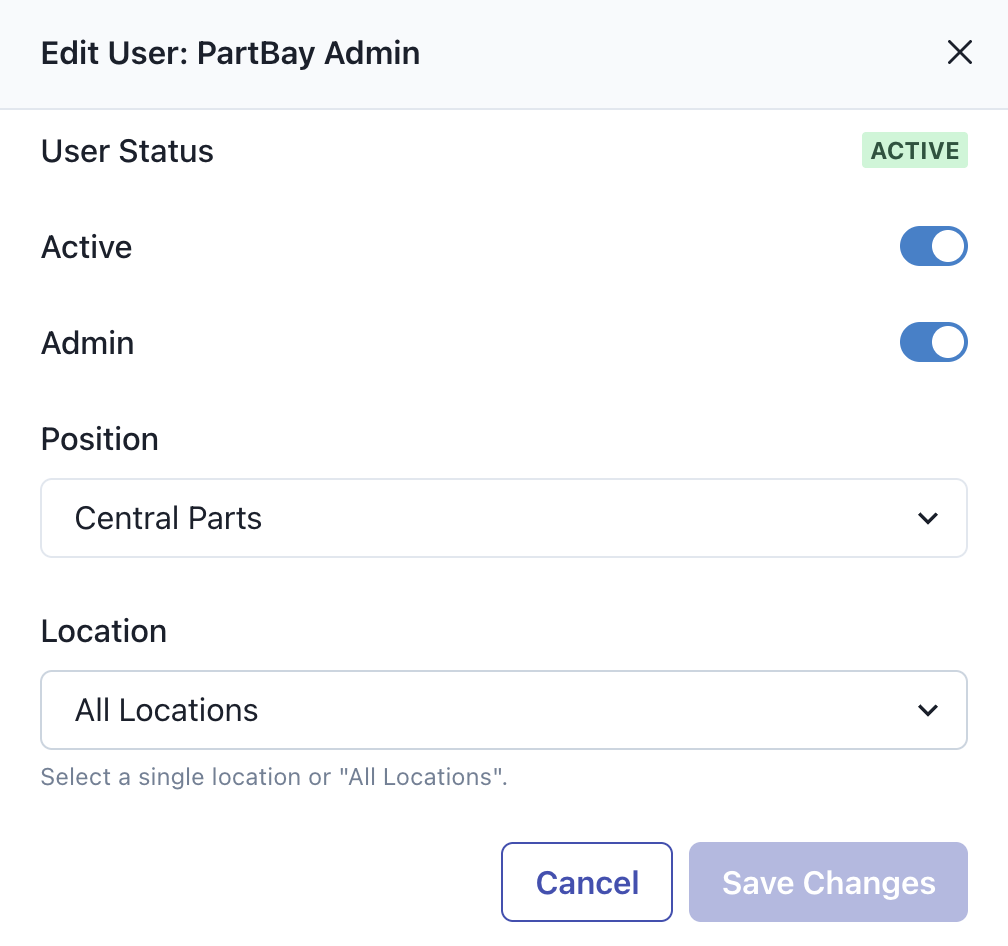
The Edit User dialog allows you to:
Deactivate a user — removes their access to PartBay
Make a user an admin — grants them full access to Organization Settings and admin-level controls
Change their position — updates their role within your organization
Change their location assignment — assign them to a specific location or to all locations
Promoting a user to admin is a one-way action.
Once a user is made an admin, you cannot remove admin access on your own. You'll need to contact PartBay to have admin access revoked. Make sure you're confident in the change before promoting a user.
Managing Locations
You can add a new location directly from Organization Settings, but adding a location here does not make it active on its own.
After adding a location, contact PartBay to finish activation. There are setup steps on our end, and your IT team may also need to configure the integration between PartBay and your estimating system for that location. Once everything is in place on both sides, the location will become active.
FAQs
How do I remove admin access from a user?
You can't do this yourself. Contact PartBay and we'll remove admin access on our end.
I added a new location but it's not working. Why?
New locations require activation by PartBay and coordination with your IT team. Reach out to us after adding the location and we'll get everything set up.
Can a user be assigned to more than one location?
Yes. When editing a user, you can assign them to a specific location or to all locations on your account.
Where do I configure part selection, vendor preferences, or ordering rules?
Those live under Preferences, not Organization Settings. See the related Preferences articles in this knowledge base.